Unknown's avatar

EaselJS (with Backbone.js)

In my last post, I wrote about gameQuery; since then, I have tried out EaselJS, a similar Javascript library. Unlike gameQuery, however, EaselJS uses HTML5 canvas; gameQuery uses DOM manipulation.

I tried building the same game from my last post with EaselJS and Backbone.js. To my surprise, working with EaselJS was somewhat similar to coding in ActionScript 3 – there was a stage (the root level container for a display list) and there was”addChild(),” which is used to add display objects to containers. In fact, many of the methods in Container reminded me of AS3’s DisplayObjectContainer, so coming from a Flash background, I found EaselJS’s concept of a display list and working with it easy to grasp.

Left: EaselJS in a Backbone.js View; Right: gameQuery in a Backbone.js View

Left: EaselJS in a Backbone.js View; Right: gameQuery in a Backbone.js View

In the above code screenshot, it took less than half as many lines in gameQuery to load images.  However, from a readability perspective, I could understand what’s going on in the EaselJS code without having to look it up in the documentation.  Also, I like the flexibility of EaselJS in that I have the ability to add event listeners for when the images have been loaded.  gameQuery was more about setting images and their properties to certain DOM nodes.  Furthermore, I would rather go with EaselJS, since it is still being actively updated and maintained.  And, last but not least, EaselJS is part of a suite of Javascript libraries – CreateJS – which has libraries for tweens, sounds, and preloaders.  This means easy integration with these other libraries.  There is even a way to integrate EaselJS with Box 2D for physics, which I have yet to explore.

So in my quest to find a Javascript library for graphics and animation, I will be going with EaselJS.  I’ve quickly looked at Crafty, but its documentation seemed a bit lacking, and its features seemed comparable with EaselJS… although it isn’t in a suite of other library goodies like EaselJS.  🙂

Check out my source code for EaselJS with Backbone.js here.

Unknown's avatar

gameQuery (with Backbone.js)

Since I enjoy game development and am getting into Javascript, I wanted to take a look at the Javascript game engines out there.  gameQuery appealed to me because it supported older browsers; the other popular ones were for HTML5 and therefore for modern browsers.  Yeah, not sure why I care about IE8 at this point.  But you know, you never know.  Anyway.  🙂

In my demo, I’ve paired gameQuery with Backbone.js.  I began with a simple index.html file:


<!DOCTYPE HTML PUBLIC "-//W3C//DTD HTML 4.01 Transitional//EN" "http://www.w3.org/TR/html4/loose.dtd">
<html>
<head>
<title>gameQuery Demo</title>
</head>
<body>
<div id="main">
<div id="playgroundArea"></div>
</div>
<script src="js/libs/jquery-1.7.1.min.js"></script>
<script
src="js/libs/underscore-min.js"></script>
<script src="js/libs/backbone-min.js"></script>
<script src="js/libs/jquery.gamequery-0.7.0.js"></script>
<script src="js/model.js"></script>
<script src="js/view.js"></script>
<script src="js/main.js"></script>
</body>
</html>

Note the div id “playgroundArea.”  This is where we’ll append our divs that contain our game images as their background-images.  Also note the ordering of the scripts for model.js, view.js, and main.js, as view.js makes calls to model.js, and main.js makes calls to view.js.  Here are short descriptions of what the files contain:

1. model.js – Basic game data, such as the background, player, and baddie (rock) sizes, as well as initial x and y positions.  It also has the refresh rate and player move amount in pixels.  In my demo, I basically set default properties in a Backbone model:

var GameModel = Backbone.Model.extend({
defaults: {
bgWidth:640,
bgHeight:640,
refreshRate:60,
...
}
});

2. view.js – Renders the images such as the background, player, and baddie (rock).  For example, setting up and rendering the background image could look like the following:

var GameView = Backbone.View.extend({
el: $('#main'),
initialize: function(){
this.render();
},
render: function(){
var bg = new $.gameQuery.Animation({imageURL: 'img/bg.jpg'}),
playgroundArea = $(this.el).find('#playgroundArea'),
bgWidth = this.model.get('bgWidth'),
bgHeight = this.model.get('bgHeight');
...
// set up sprites
playgroundArea.playground({ width:bgWidth, height:bgHeight, refreshRate:this.model.get('refreshRate') })
.addGroup('background',{animation:bg, width:bgWidth, height:bgHeight, overflow:'visible'}).end()
...
}
});

    • playground() defines the div used to display the game.
    • addGroup() adds a transparent sprite to the currently selected element.

3. main.js – Main game functionality.  A couple of key things happen here, the startGame() and registerCallback() functions.  setupKeys() in the snippet below registers the keydown event and checks if the keys “a” (to move the player left) or “d” (to move the player right) have been pressed.

// start game
$.playground().startGame(function(){
setupKeys();
});


// called at a regular interval
$.playground().registerCallback(function(){
$('#baddies').y( 8, true );

var baddiesTop = Number( $('#baddies').css('top').replace('px','') ),
baddiesLeft = Number( $('#baddies').css('left').replace('px','') ),
playerTop = Number( $('#player').css('top').replace('px','') ),
playerLeft = Number( $('#player').css('left').replace('px','') );

// hit test
if ( ( (baddiesTop > (playerTop)) && (baddiesTop < (playerTop+40)) ) && ( (baddiesLeft > (playerLeft+40)) && (baddiesLeft < (playerLeft+80)) ) ) {
alert('hit');
}

}, gameModel.get('refreshRate'));

  • startGame() preloads the resources and starts the main game loop.
  • registerCallback() registers a function to be called at a regular interval.  In my demo, it’s where I move the baddie (rock).

Screenshot:

My full source code can be found here.

Unknown's avatar

Starling

Many claim that “Flash is dead,” but I believe that in the world of gaming, this is not so. One of the reasons is a framework called Starling.

Starling is a free open source Actionscript 3 library which renders its content by using Flash’s Stage 3D technology. What does this mean? Faster performance which makes use of GPU hardware acceleration. The ever-so popular game Angry Birds was built using this framework.

My Starling Game Demo Example
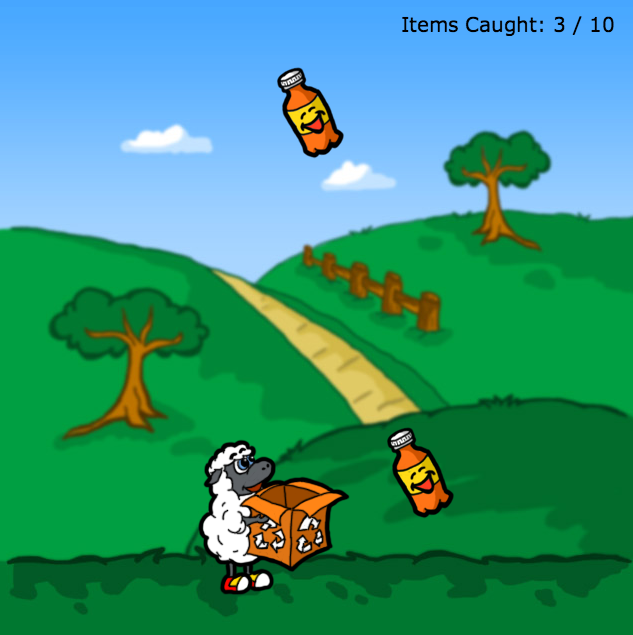
Screenshot from my Starling game demo example

After trying out Starling on my own, I was pretty amazed by a few things:

1. Quick setup.
It is simply a swc file that you include in your library. Then, create a Startup class that will instantiate and start up the Starling instance:

import flash.display.Sprite;
import starling.core.Starling;

[SWF(width="400", height="300", frameRate="60", backgroundColor="#ffffff")]
public class Startup extends Sprite
{
private var _starling:Starling;

public function Startup()
{
_starling = new Starling(Game, stage);
_starling.start();
}
}

The “Game” parameter of the constructor expects a class that is a Starling display object.

2. Ease of use.
You can then go on your merry way writing AS3 as usual, but instead of using the regular Flash display classes, use the ones in Starling. Since I use Flash Builder, the IDE would often automatically import “flash.display” classes; you’d have to replace those with “starling.display.” Also, loading images is a bit of more work than loading an image and adding it to the display list. Starling uses a Texture class that contains an image’s data, and then it uses an Image class to render that data:

...
// load background
loadBackground( _gameModel.bgImagePath );
}

/**
* Load background image.
* @param url URL of background image.
* TODO: Create image loader utility class that all image loading can use, then dispatch event when that particular image is ready.
*/
private function loadBackground( url:String ):void
{
_loader.load( new URLRequest( url ) );
_loader.contentLoaderInfo.addEventListener(flash.events.Event.COMPLETE, onLoadBackgroundComplete);
}

/**
* On load background image complete.
* @param event Flash event for event complete.
*/
private function onLoadBackgroundComplete( event:flash.events.Event ):void
{
_loader.removeEventListener(flash.events.Event.COMPLETE, onLoadBackgroundComplete);

// add background to display list
var loadedImage:Bitmap = event.currentTarget.loader.content as Bitmap;
var image:Image = new Image(Texture.fromBitmap(loadedImage));
_bgContainer.addChild(image);

3. Awesome performance.
The smoothness of Starling is impeccable, but I am sure it is even more evident with the more graphic-intensive games out there (like Angry Birds). With Starling’s awesome performance and with Adobe Air (and even Flash CS5.5+)’s ability to deploy to iOS and Android, who says that Flash is dead? 🙂

Check out my source files and you’ll find how quick and easy it is for AS3 developers to jump onto Starling!